

If you’d prefer to integrate directly with your company’s systems, visit the Nuggets accounts portal developer section. Before You Begin
To use Nuggets, you’ll need to download the mobile app and register with your photo ID before you can log in. App setup involves an identity verification process, including a government-issued ID and a biometric and liveness check. Full details can be found in the Identity Wallet Setup guide. Logging In
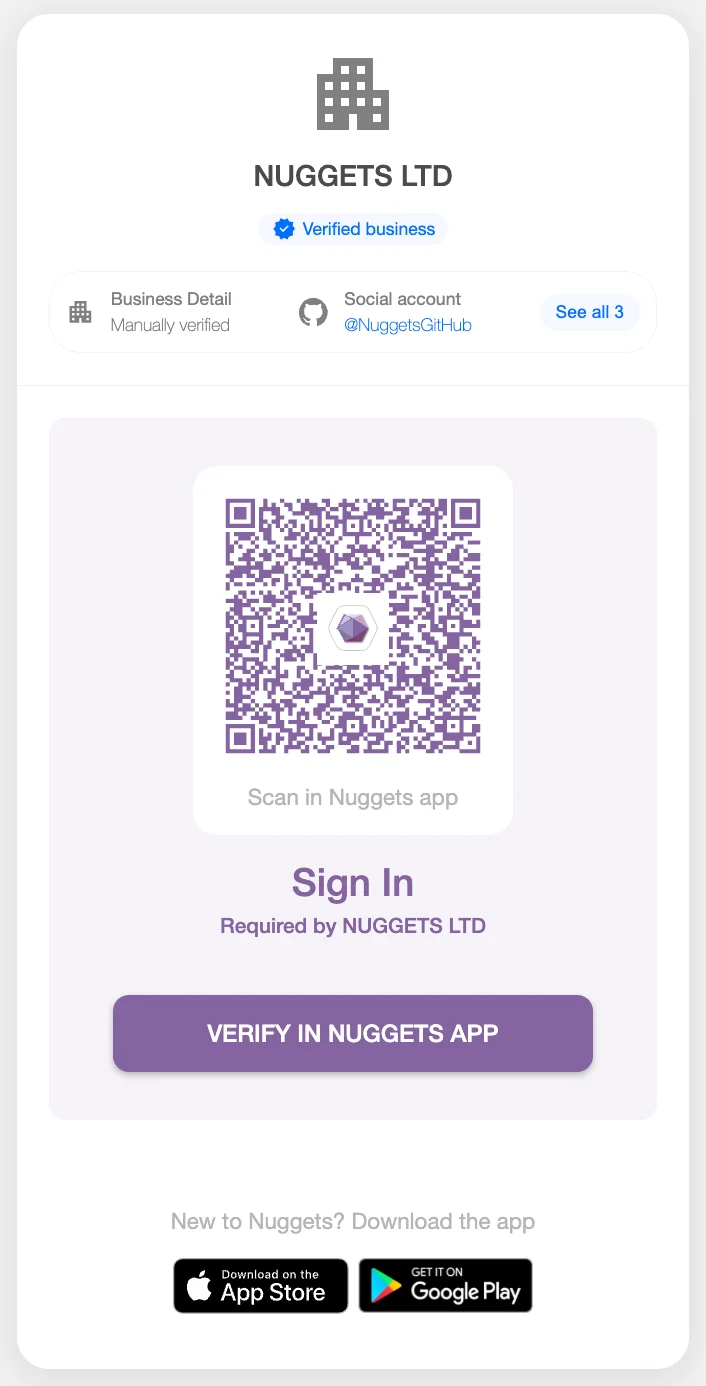
Once your app and profile are ready, go to the Nuggets accounts portal and hit Login. You’ll be shown a screen with a QR code - scan this using your Nuggets App or press the “VERIFY IN NUGGETS APP” button if you’re on a mobile device.
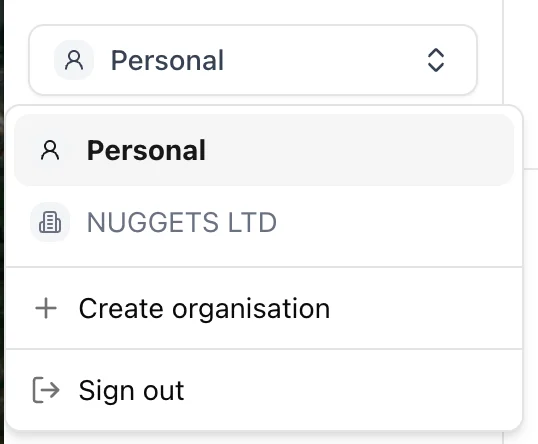
Once logged in, click on the dropdown menu set to ‘Personal’ and select Create Organisation. Follow the on-screen steps to complete setup. As part of this, you’ll need to add a payment card to your Nuggets app - the card must be in the same name as the photo ID used during identity verification. Note that a named director of the business is required to create an organisation. You can run checks from a personal account, but you won’t have the benefits of adding employees or sending requests as a verified business.
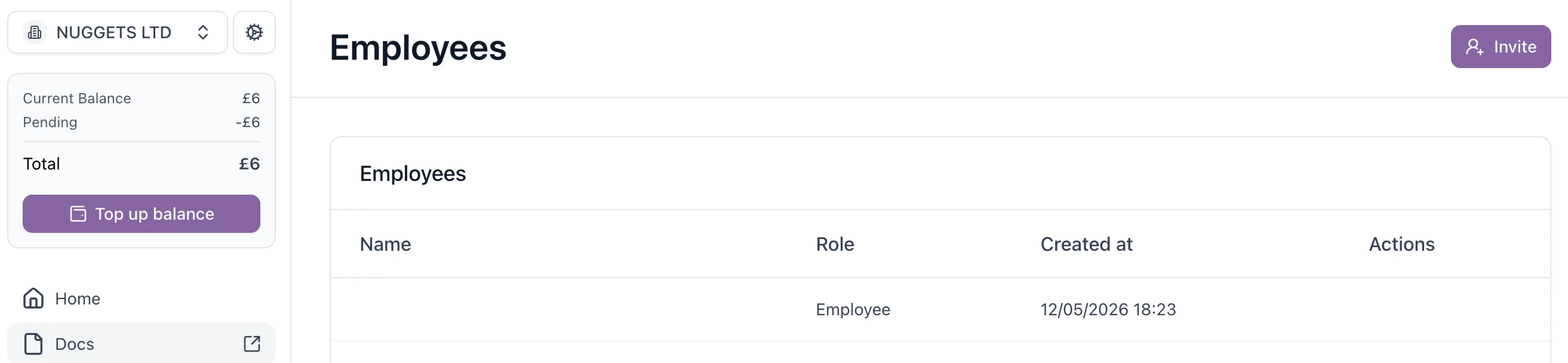
To add employees to your organisation, go to the Employees section in the side menu and hit Invite. Enter the email address(es) of the people you’d like to add and hit Submit. Once an employee has been added, they’ll need to share their profile with the organisation before their name will be visible to you as the org manager. Until they do this, their entry will appear without a name in the Employees list.
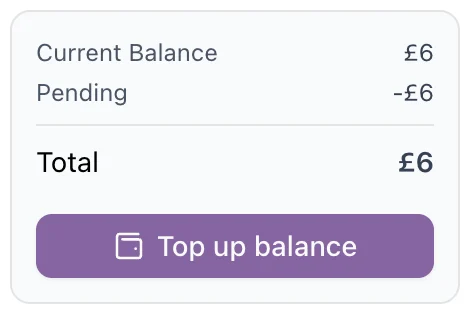
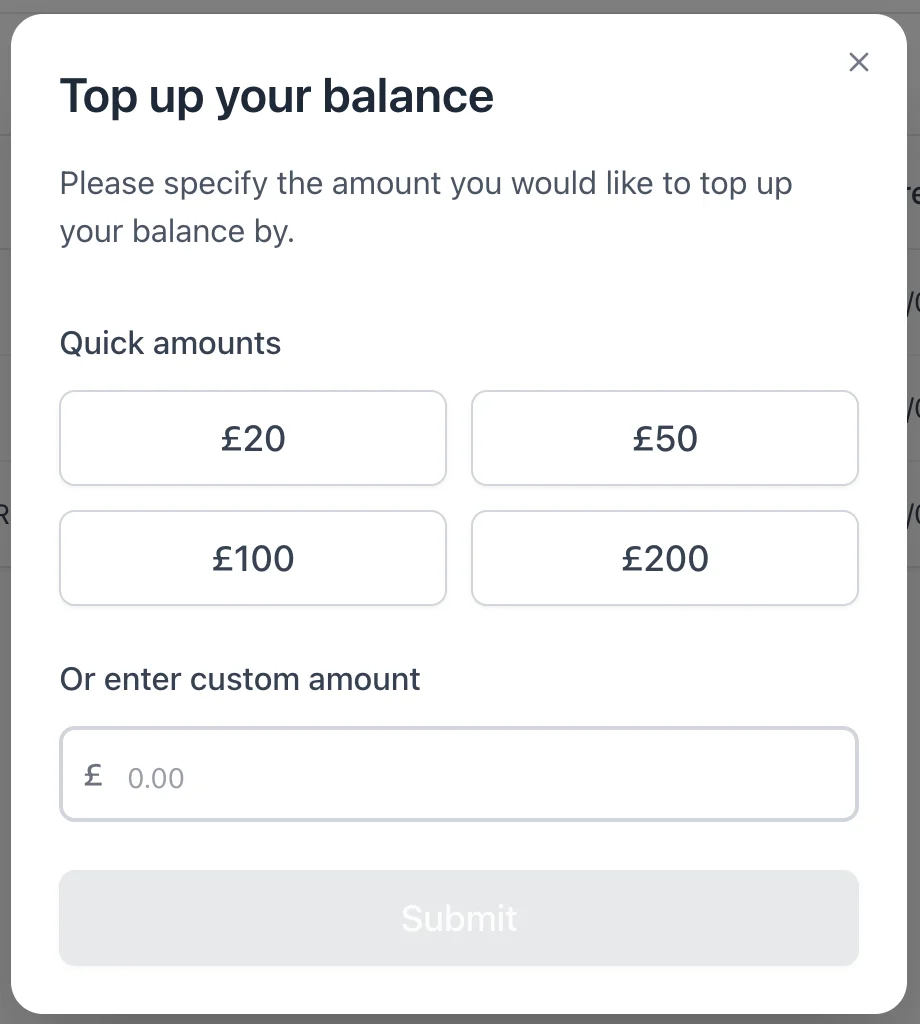
Before running any checks, top up your account balance. The named director should initially add funds. Once other team members have been added as employees, they can add funds too. Hit Top up balance in the portal and specify the amount you’d like to add.
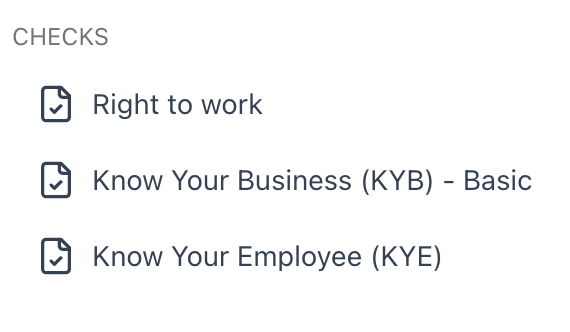
Once your balance is topped up, select Right to Work from the Checks section.
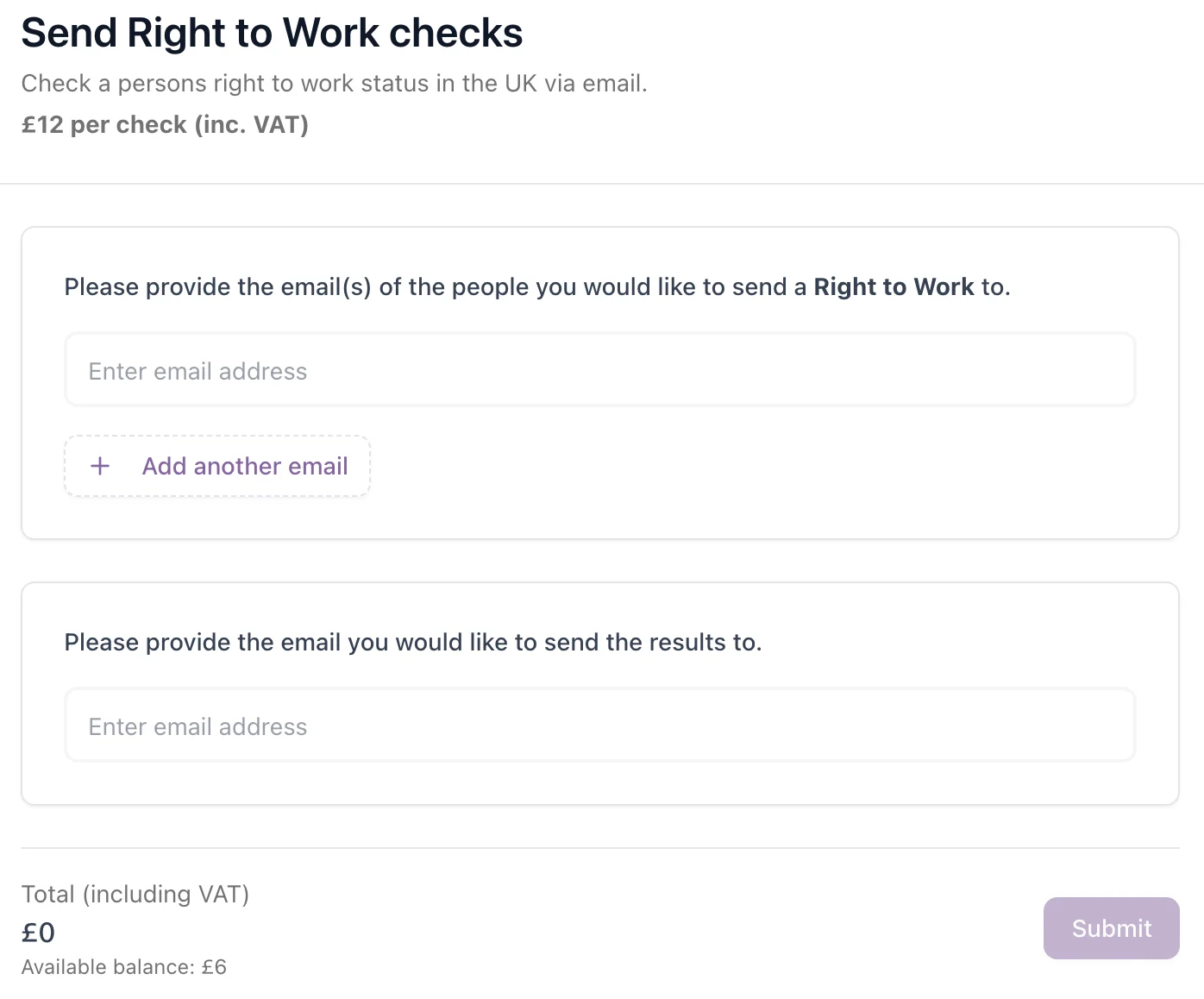
- The recipient’s email address (the person completing the check)
- The results email address (where you’d like the outcome sent - e.g. yourself or your HR manager)\
After sending, return to the Right to Work checks page at any time to view the status of your check. Once the recipient has completed the process, a confirmation email will be sent to the results address you provided, containing the following information:
Passport
Share Code