> ## Documentation Index
> Fetch the complete documentation index at: https://nuggets.life/docs/llms.txt
> Use this file to discover all available pages before exploring further.
# Know Your Business (KYB)
> Know Your Business verification checks sent via email. Non-technical business authentication solution with email notifications and check outcomes.
Know Your Business (KYB) checks allow you to verify the legitimacy of a business and its directors. Checks are available as a pay-as-you-go service at £30 per check (inc. VAT) with no minimum or maximum spend. To run checks as a verified business - with the ability to add employees and send verified business requests - you'll need to set up an organisation verified with the identity of a named director on the Dun & Bradstreet global business database. This is a non-technical option requiring no integration. If you'd prefer to integrate directly with your company's systems, visit the Nuggets accounts portal developer section.
**Before You Begin**\
To use Nuggets, you'll need to download the mobile app and register with your photo ID before you can log in. App setup involves an identity verification process, including a government-issued ID and a biometric and liveness check. Full details can be found in the[ Identity Wallet Setup guide](https://www.nuggets.life/docs/getting-started/identity-wallet-setup).
**Logging In**\
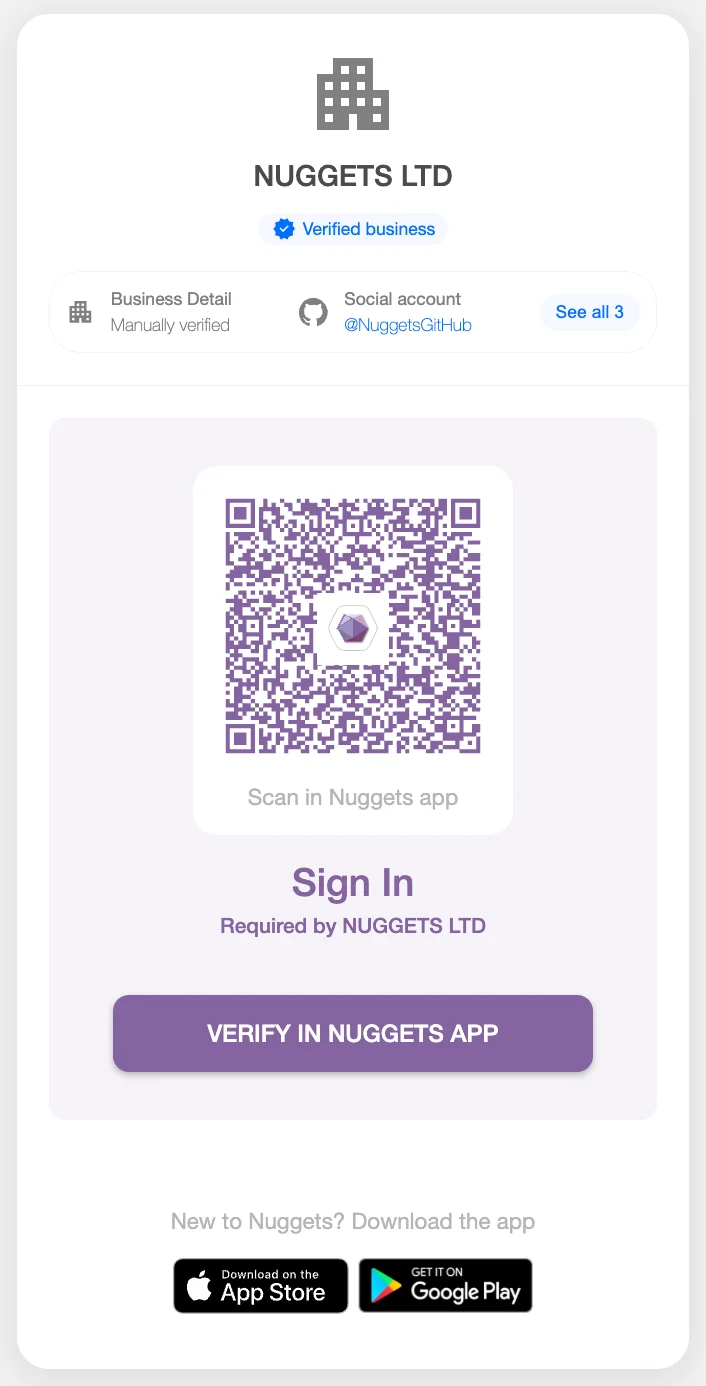
Once your app and profile are ready, go to the accounts portal and hit **Login**. You'll be shown a screen with a QR code - scan this using your Nuggets app or press the “VERIFY IN NUGGETS APP” button if you’re on a mobile device.
 **Setting Up Your Organisation**\
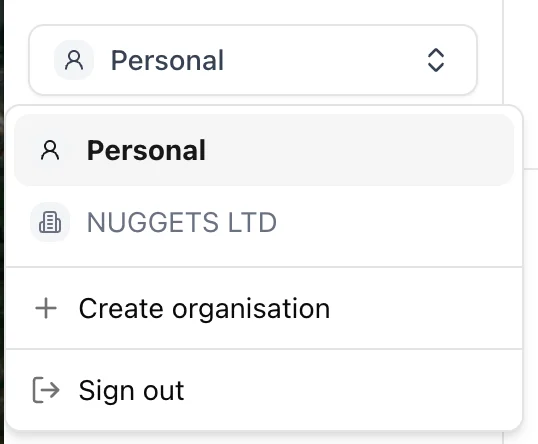
Once logged in, click on the dropdown menu set to 'Personal' and select **Create Organisation**. Follow the on-screen steps to complete setup. Note that a named director of the business is required to create an organisation. Setting up an organisation lets you add employees and send requests as a verified business.
**Setting Up Your Organisation**\
Once logged in, click on the dropdown menu set to 'Personal' and select **Create Organisation**. Follow the on-screen steps to complete setup. Note that a named director of the business is required to create an organisation. Setting up an organisation lets you add employees and send requests as a verified business.
 **Adding Employees**\
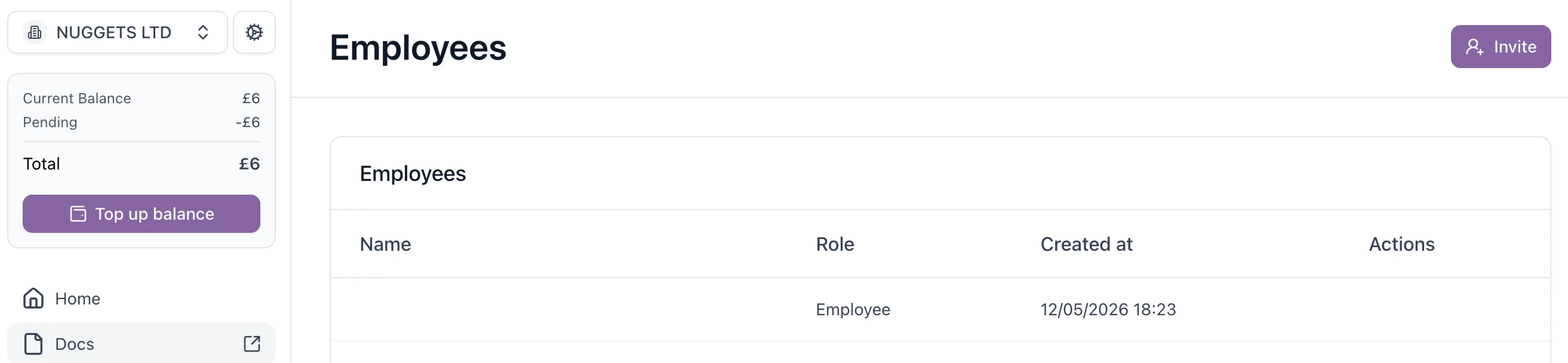
To add employees to your organisation, go to the **Employees** section in the side menu and hit **Invite**. Enter the email address(es) of the people you'd like to add and hit **Submit**. When inviting someone, you can assign them either an Employee or Admin role - admins can invite additional users to the organisation.
Once an employee has been added, they'll need to **share their profile** with the organisation before their name will be visible to you as the org manager. Until they do this, their entry will appear without a name in the Employees list.
**Adding Employees**\
To add employees to your organisation, go to the **Employees** section in the side menu and hit **Invite**. Enter the email address(es) of the people you'd like to add and hit **Submit**. When inviting someone, you can assign them either an Employee or Admin role - admins can invite additional users to the organisation.
Once an employee has been added, they'll need to **share their profile** with the organisation before their name will be visible to you as the org manager. Until they do this, their entry will appear without a name in the Employees list.
 **Adding Funds**\
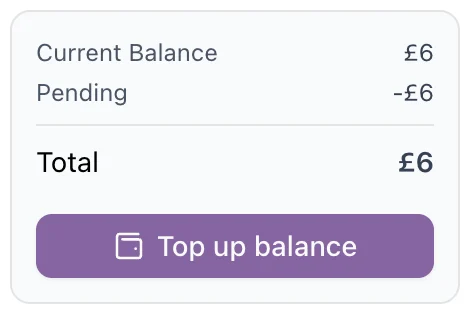
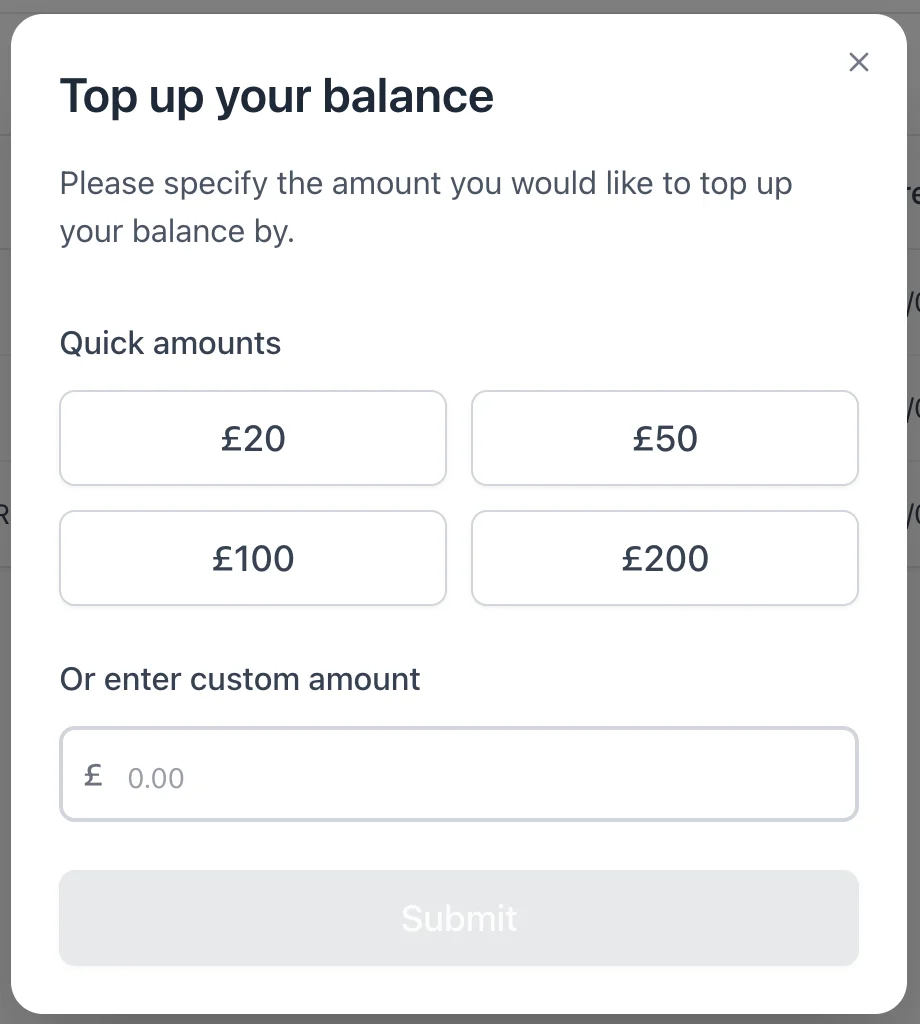
Before running any checks, top up your account balance. To do this, you'll first need to add a payment card to your Nuggets app - the card must be in the same name as the photo ID used during identity verification. For this reason, the named director should add funds initially. Once other team members have been added as employees, they can add funds too. Hit **Top up balance** in the portal and specify the amount you'd like to add.
**Adding Funds**\
Before running any checks, top up your account balance. To do this, you'll first need to add a payment card to your Nuggets app - the card must be in the same name as the photo ID used during identity verification. For this reason, the named director should add funds initially. Once other team members have been added as employees, they can add funds too. Hit **Top up balance** in the portal and specify the amount you'd like to add.
 **Sending a Know Your Business Check**\
Once your balance is topped up, select **Know Your Business** from the Checks section.
**Sending a Know Your Business Check**\
Once your balance is topped up, select **Know Your Business** from the Checks section.
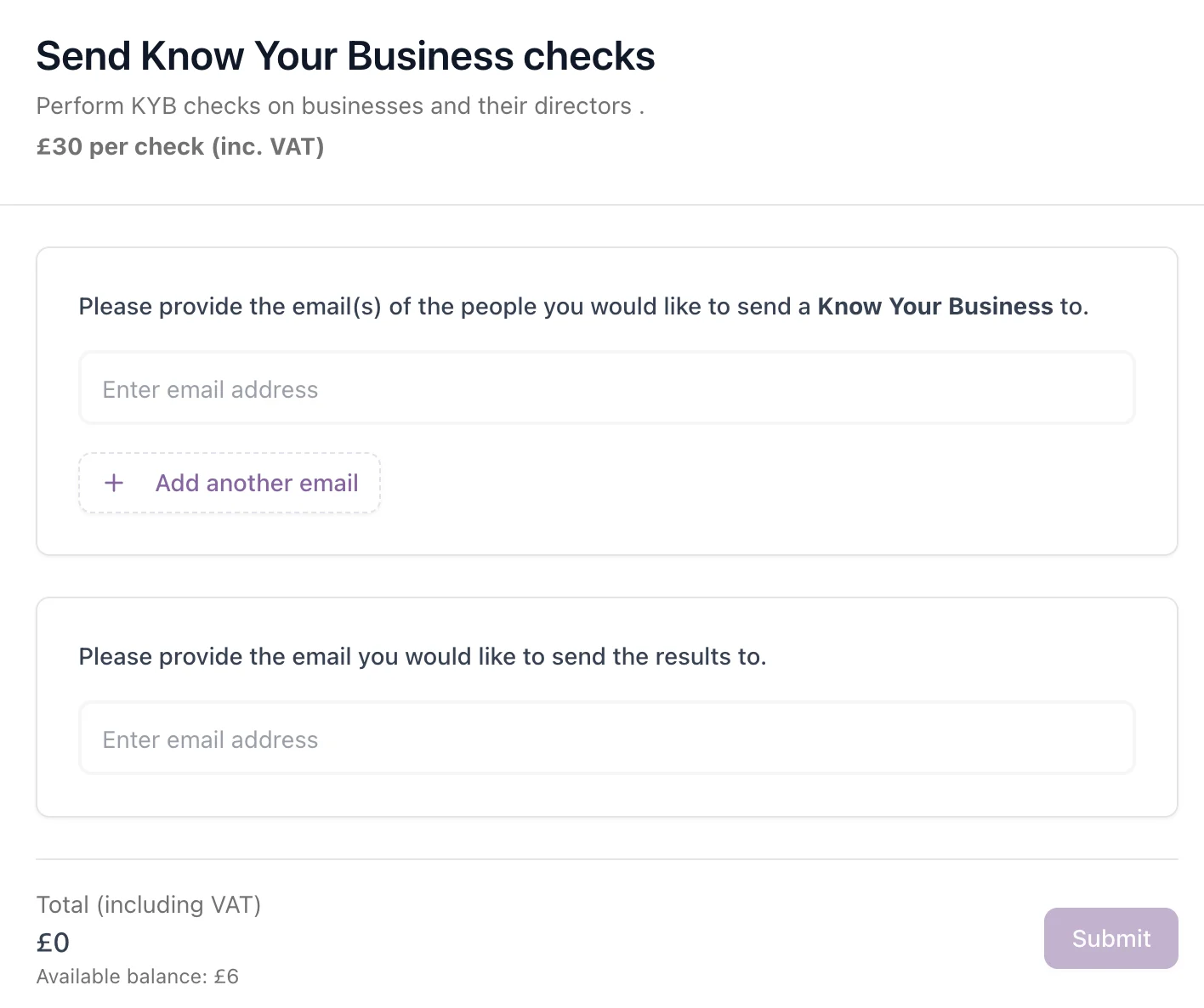 Hit **Send** to initiate a check, then follow the on-screen instructions to enter:
* The **recipient's email address** (the person completing the check on behalf of the business being verified)
* The **results email address** (where you'd like the outcome sent - e.g. yourself or your compliance manager)
**Tracking & Completion**\
After sending, return to the Know Your Business checks page at any time to view the status of your check. Once the recipient has completed the process, a confirmation email with the outcome will be sent to the results address you provided, containing the following information:
**Business Details**
* Business Name
* DUNS Number
**Address**
* Country
* City
* Postal Code
Hit **Send** to initiate a check, then follow the on-screen instructions to enter:
* The **recipient's email address** (the person completing the check on behalf of the business being verified)
* The **results email address** (where you'd like the outcome sent - e.g. yourself or your compliance manager)
**Tracking & Completion**\
After sending, return to the Know Your Business checks page at any time to view the status of your check. Once the recipient has completed the process, a confirmation email with the outcome will be sent to the results address you provided, containing the following information:
**Business Details**
* Business Name
* DUNS Number
**Address**
* Country
* City
* Postal Code